
Introduction
The Travel Request module of GAPURAKU PORTAL automates the full business-trip lifecycle – from the requestor filling a draft, through HOD approval, GA ticket sourcing, vendor bidding, Country Manager price approval, and final issuance.
Every transition triggers an automatic email so all stakeholders (requestor, HOD, GA team, Country Manager, travel agents) stay aligned without phone-tag.
Logging In
Open your browser and go to:
https://gapuraku.sysmamas.com/login
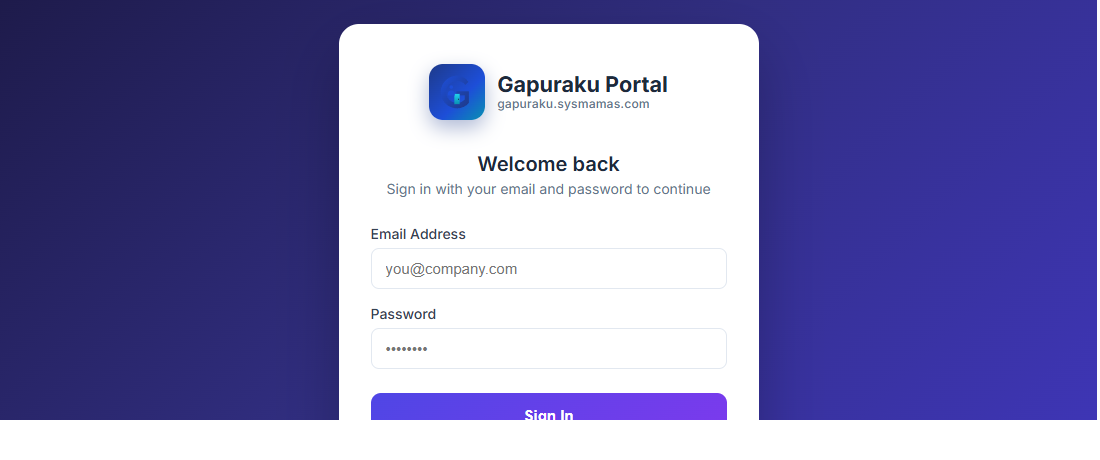
| Field | What to enter |
|---|---|
| Email Address | Your company email (e.g. yourname@esrnl.com). |
| Password | The password set by the administrator when your account was created. |
Portal Layout
After login you land on the Dashboard. The sidebar on the left lists every module you have access to.
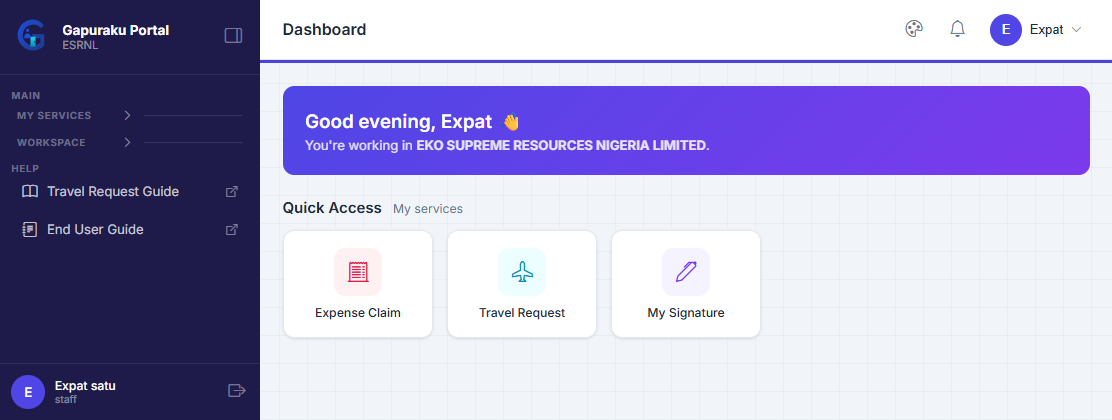
| Sidebar item | Purpose |
|---|---|
| 🛫 Travel Request | Create / view your trip requests, plus role-specific queues (HOD, GA, CM). |
| 🧾 Expense Claim | Submit and track reimbursements (separate module). |
| ✍ My Signature | Save the digital signature used on printed travel requests. |
| 📖 Help | Opens this user guide in a new tab. |
Workflow Overview
A travel request flows through eight statuses in total:
Draft
The traveller prepares the request, reviews the route, and submits it for approval.
Submitted
The request moves through the configured approval levels until the final approver clears it.
Approved → Ticket Processing
GA picks up the work, sources fares, invites vendors when needed, and selects the proposed ticket.
Price Approval → Booking → Issued
Country Manager approves the selected fare, GA confirms the booking, then marks the ticket as issued.
| Status | Who acts | What happens |
|---|---|---|
| draft | Requestor | Create / edit before submitting. |
| submitted | HOD (Level 1+) | Approve or reject. |
| approved | GA Team | GA pickup pending. |
| ticket_processing | GA Officer | Search flights, invite quotations, pick a ticket. |
| price_approval | Country Manager | Approve / reject the proposed ticket price. |
| booking | GA Officer | Confirm the booking with the airline / agent. |
| issued | — | Closed; traveller notified. |
| rejected | — | Closed; requestor notified. |
For the Requestor – Create a Request
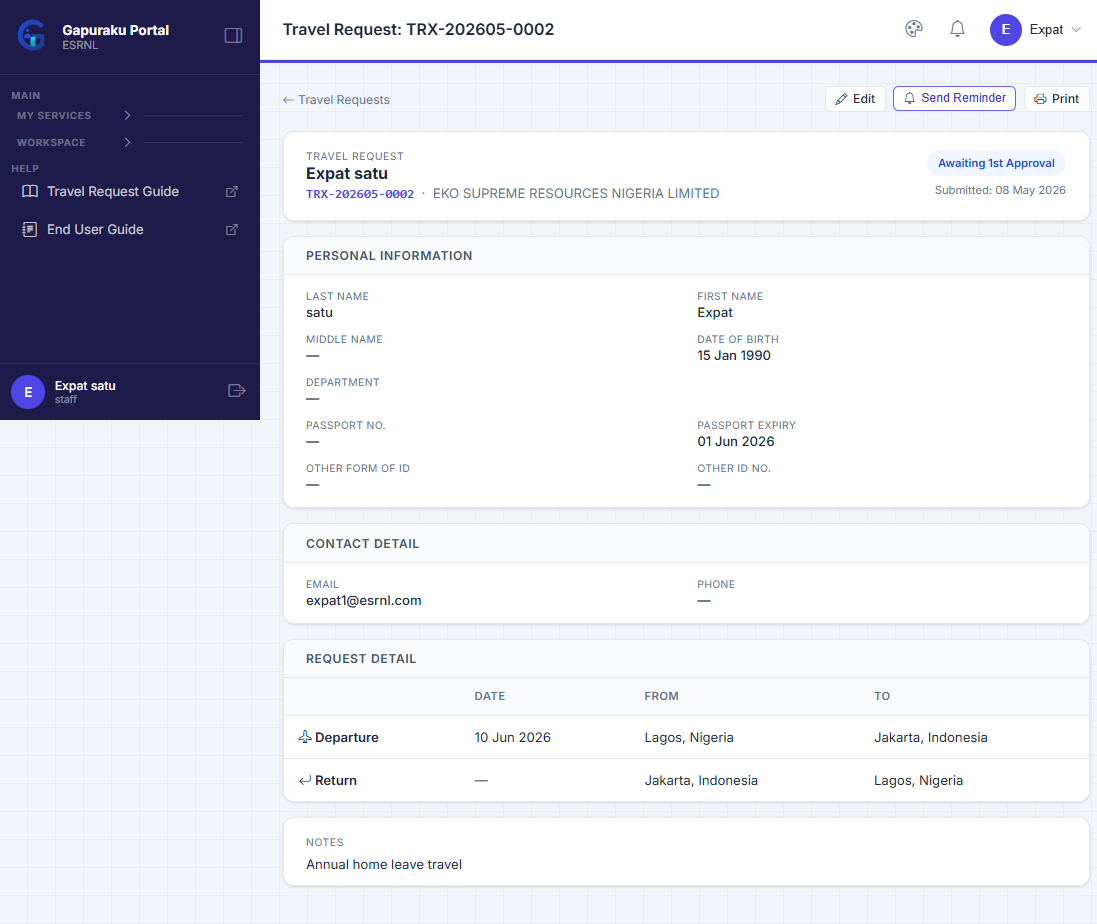
From the sidebar open Travel Request. The list page shows all requests you can see for the current entity.
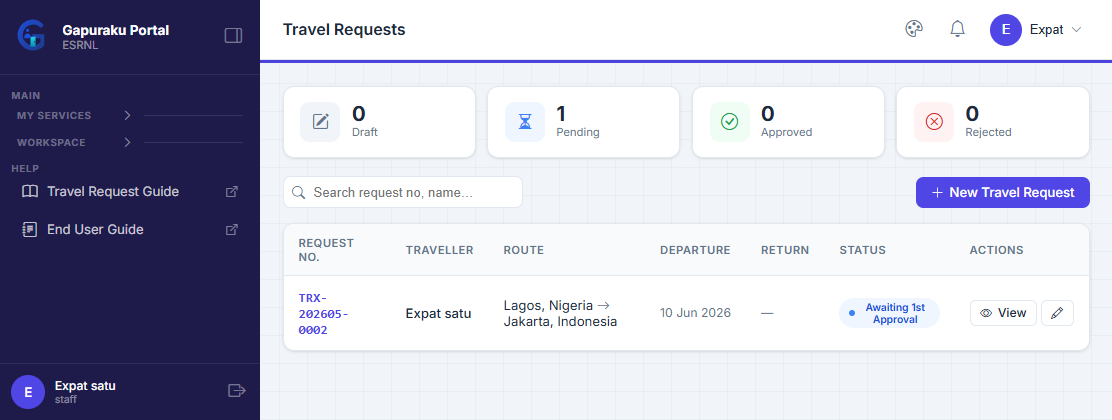
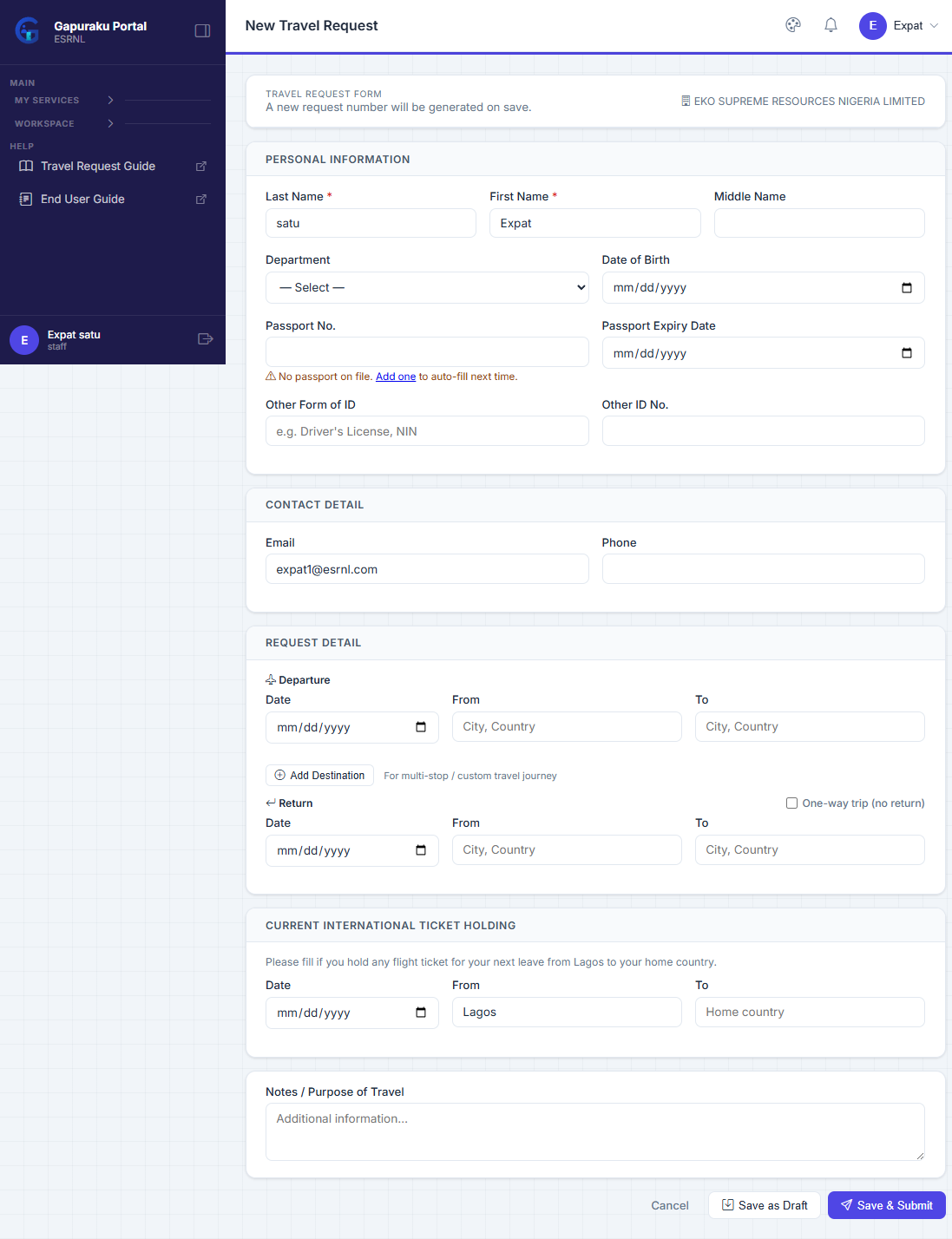
- Click + New Request.
- Fill Personal Information, Contact, Departure / Return / Stops, and Purpose / Notes.
- Click Save Draft (you can keep editing) or Submit for Approval.
After Submission
- The first approver (your HOD) receives an email automatically.
- Status badge becomes Submitted.
- Click Send Reminder if the approver is taking long.
- Click Recall & Edit if it has been escalated past Level 1 — this resets all approvals.
Once Approved
- Status becomes Approval Completed — Awaiting GA.
- You cannot edit anymore. The GA team will start sourcing tickets.
- A new card Selected Ticket appears once GA awards a fare.
For the HOD / Approver
- You receive an email [TRX] Approval Required: TRX-… with a Review Request button.
- Open the request → the toolbar shows Approve and Reject.
- Reject requires a reason (sent back in the email to the requestor).
- Approve moves the request to the next approval level, or to GA if you are the last level.
- If a higher level rejects later, all earlier approvals are wiped and the request returns to
draft.
For the GA Officer – Pickup the Work
- Sidebar → Travel Request lists the queue (red badge = pending GA action).
- Open an approved request → click Process Ticket.
- The first GA officer to open the request becomes its owner (status moves to
ticket_processing).
Search & Quote
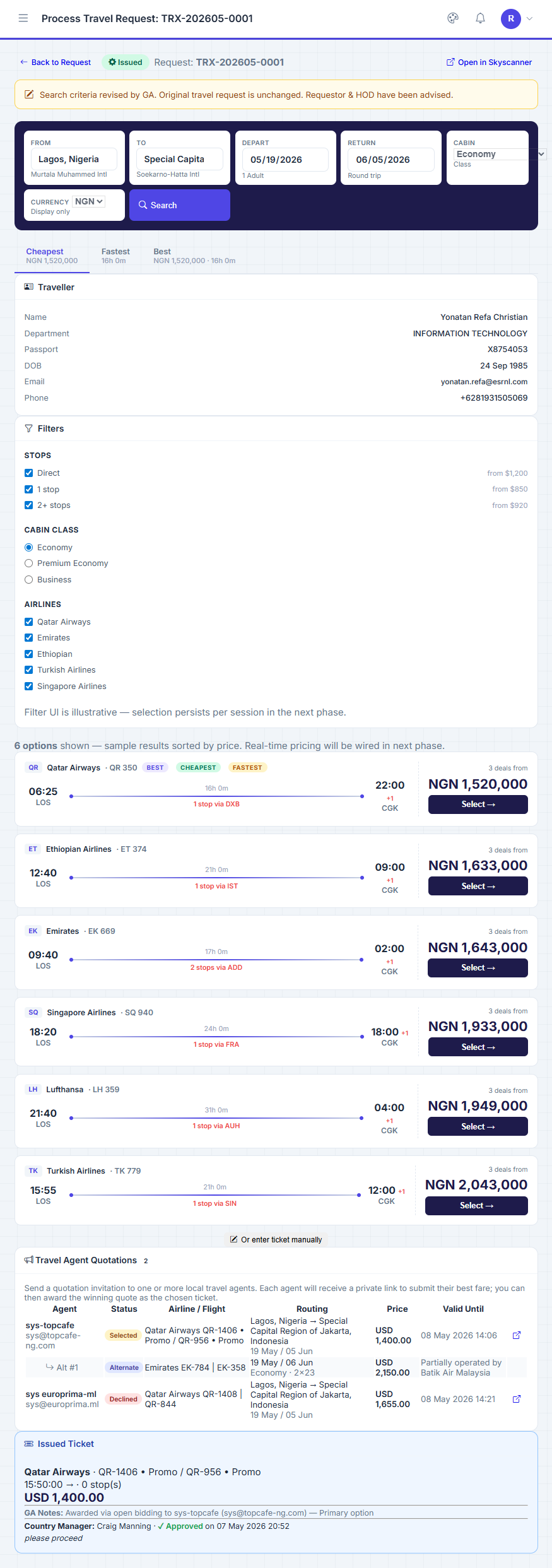
- The Process screen shows mock flight options based on the original request.
- You can revise dates / airports / cabin class via the search bar at the top — this triggers an email Travel Plan Revised by GA to the requestor (Cc HOD).
- Currency dropdown affects the displayed prices (USD / EUR / GBP / IDR / SGD / AUD / JPY / AED / NGN).
Open Bidding (Recommended)
- Scroll to Travel Agent Quotations → click + Invite Agent.
- Add one or more agents (Name + Email). They receive a tokenised public link – no login needed.
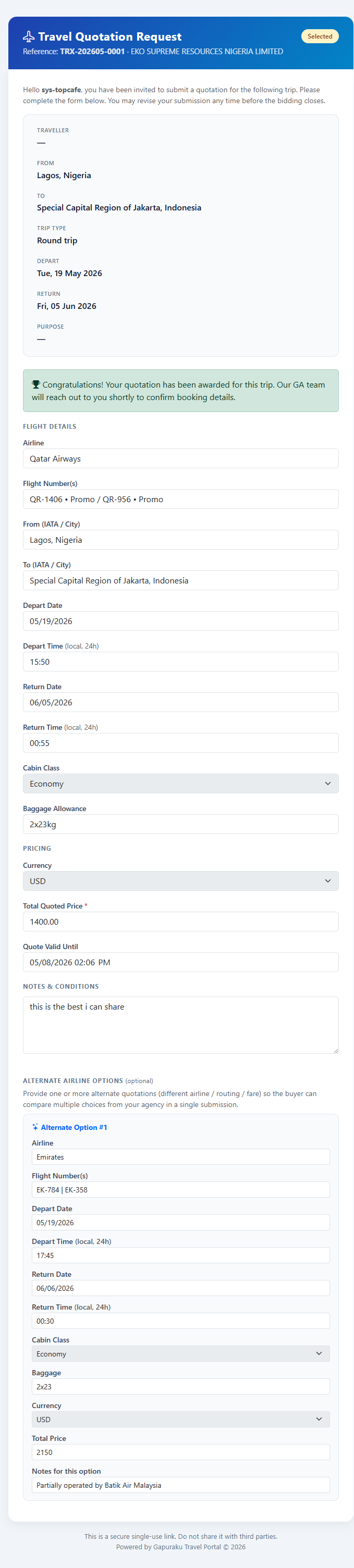
- Each agent submits via the public form:
- Primary option (airline, flight no, dates, times in 24h local, cabin, baggage, total price, currency, valid-until).
- Optional Alternate options (Add Alt button repeatedly).
- When a vendor submits, you receive [TRX] New Quotation: … – a confirmation copy is also sent to the vendor.
Award a Quotation
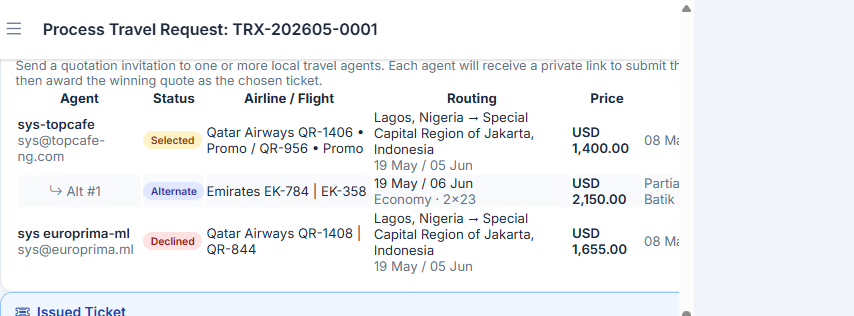
The chosen quote becomes the Selected Ticket on this request. All other invited / submitted quotes are auto-set to declined.
Submit for Country Manager
- Once a Selected Ticket is in place, click Submit for Price Approval in the toolbar.
- All Country Managers attached to this entity receive an email.
- Status becomes Awaiting Country Manager (Price) — the screen is locked while waiting.
- Click Remind Country Manager to nudge them.
After CM Decides
- Approved → status becomes booking. Click Mark as Issued when the airline / agent has confirmed the PNR.
- Rejected → status returns to ticket_processing with the CM's notes; revise the selection.
For the Country Manager
- You receive an email [TRX] Ticket Price Approval Needed: … with a Review & Approve Price button.
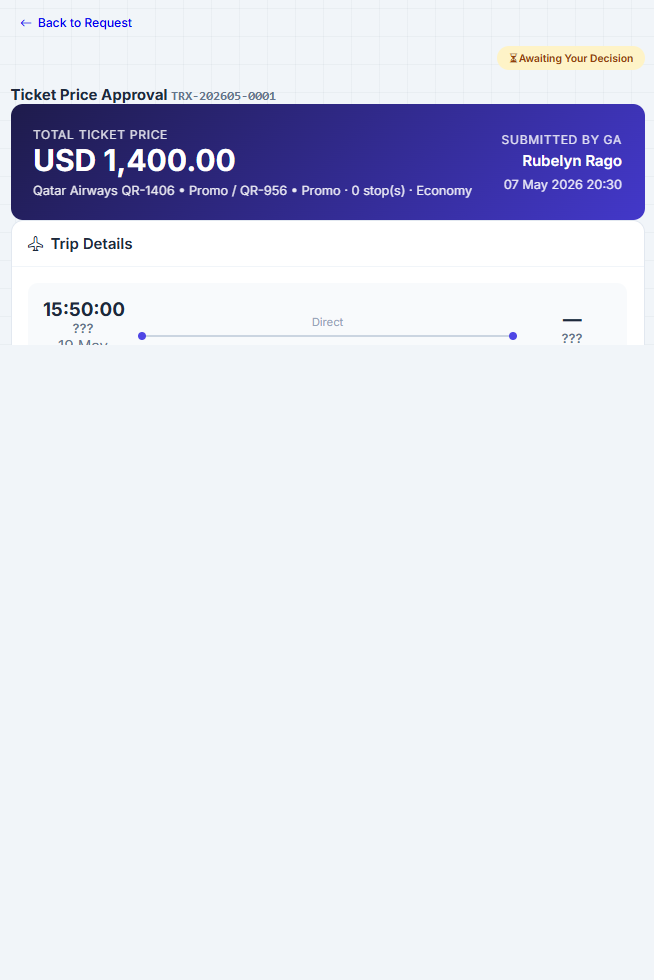
- The review screen shows: trip details, selected ticket details, agent, total price.
- Choose Approve Price or Reject Price — rejection requires a note (cheaper carrier / reschedule / etc.).
- The GA officer is notified immediately of your decision.
For the Travel Agent (Vendor)
- You receive an email [TRX] Quotation Invitation: … with a unique link.
- Open the link — no login is required (the token is your access).
- Fill the primary option (airline, flight no, depart / return dates and times in 24-hour local time, cabin class, baggage, total price, currency, valid-until).
- Optional: click + Add Alternate Option to submit additional fares (e.g., business class, different airline, one-stop alternative).
- Click Submit Quotation — you'll receive a confirmation email.
- You may also Decline the invitation.
Email Notifications
| Event | Sent To | Cc |
|---|---|---|
| Request submitted | HOD (Level 1) | — |
| Approval reminder | Pending approver | — |
| Next-level approval needed | Next approver | — |
| Request fully approved | Requestor | — |
| Request rejected | Requestor | — |
| Ready for GA pickup | All GA users on the entity | — |
| GA revised search criteria | Requestor | HOD |
| Quotation invitation | Vendor | — |
| Quotation received | Vendor | GA Officer |
| Ticket price approval needed | Country Manager(s) | — |
| Country Manager decision | GA Officer | — |
| Tickets issued | Requestor | — |
alert@gsuite.sysmamas.com). Replies are not monitored — use the in-app links instead.Permissions & Safety Rails
| Rule | Enforcement |
|---|---|
| Requestor cannot approve / reject / process their own request | Server-side 403 in ensureGaAccess and ensureCountryManagerAccess. |
| Only GA users assigned to the entity can pick up tickets | user_entities.role = ga |
| Only Country Managers assigned to the entity can decide on price | user_entities.role = country_manager |
| Vendor links are tokenised (48-char random) and one-shot | travel_quotations.token |
| CSRF tokens are required on every state-changing form | csrf_field() / verifyCsrf() |
Status Badges (Cheat-Sheet)
| Badge | Meaning |
|---|---|
| Draft | Requestor still editing. |
| Submitted | Waiting on approver. |
| Approval Completed — Awaiting GA | GA pickup pending. |
| Ticket Processing | GA actively sourcing. |
| Awaiting Country Manager (Price) | Locked until CM decides. |
| Booking | CM approved; GA confirming with airline. |
| Issued | Trip confirmed. |
| Rejected | Closed. |
Troubleshooting
| Symptom | Resolution |
|---|---|
| "I don't see the Process Ticket button" | Confirm you have role ga on the request's entity, and that you are not the requestor. |
| "Country Manager email never arrived" | Check that at least one user has role country_manager on the entity. Use Remind Country Manager to resend. |
| "Vendor link says expired" | The GA officer already awarded or declined this invite. Ask GA to send a new invitation. |
| Page is blank or stuck | Press Ctrl+F5 to hard-reload. If it persists, log out and back in. |
support@sysmamas.com.GAPURAKU PORTAL – Travel Request User Guide. Last updated May 2026.